Warm Style Video Effect: Elevate Your Content with Golden Tones
# Warm Style Video Effect: Elevate Your Content with Golden Tones
About Warm
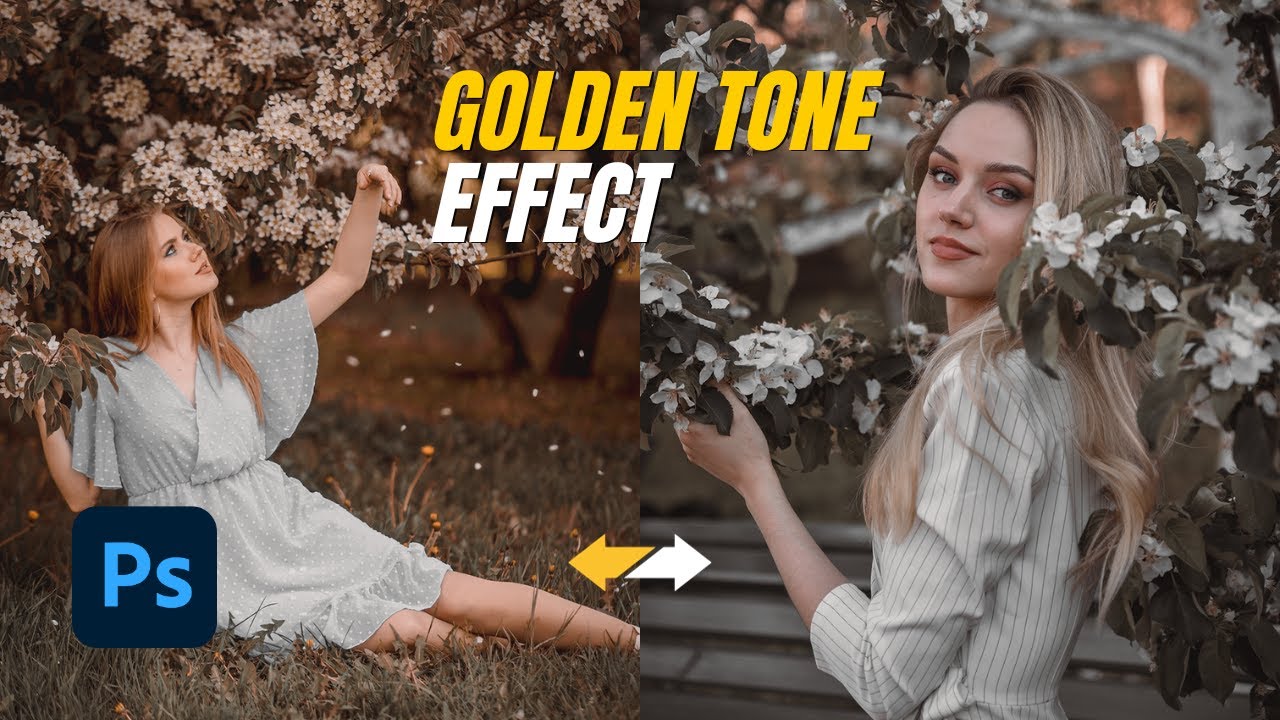
The Warm Style Video Effect adds a golden tone to your videos, creating a cozy and inviting atmosphere. This effect is perfect for lifestyle, food, and travel content, where a warm and welcoming visual appeal is essential. By applying this effect, you can transform ordinary footage into visually stunning content that captivates your audience.
Features
- Golden Tone: Adds a warm golden hue to your videos, enhancing the overall visual appeal.
- Increased Saturation: Boosts color saturation by 5%, making colors more vibrant and eye-catching.
- Enhanced Brightness: Increases brightness by 3%, ensuring your videos are well-lit and visually appealing.
- Contrast Adjustment: Improves contrast by 5%, adding depth and dimension to your footage.
- Versatile Application: Suitable for a wide range of video types, including lifestyle, food, and travel content.
When to Use Warm
The Warm Style Video Effect is ideal for various scenarios and projects. Here are some situations where this effect can significantly enhance your content:
- Lifestyle Videos: Perfect for creating a warm and inviting atmosphere in lifestyle content, making viewers feel more connected to the scene.
- Food Content: Enhances the visual appeal of food, making it look more delicious and enticing.
- Travel Videos: Adds a golden tone to travel footage, capturing the warmth and beauty of different locations.
How to Apply
Applying the Warm Style Video Effect is straightforward and can be done in a few simple steps:
1. Open Your Video Project: Start by opening your video project in Envizion AI.
2. Navigate to Color Grading: Go to the color grading section of the platform.
3. Select Warm Preset: Choose the Warm Style Video Effect from the list of presets.
4. Apply the Effect: Click to apply the effect to your video.
5. Preview and Adjust: Preview the changes and make any necessary adjustments to achieve the desired look.
For more advanced video styles, you can explore other options like Documentary or Podcast Visual.
Frequently Asked Questions
Ready to try AI video creation?
Start with 200 free credits. No credit card required.
Get Started Free200 credits included · Cancel anytime