Underline Grow: Elevate Your Video Text Effects
# Underline Grow: Elevate Your Video Text Effects
The Underline Grow effect is a dynamic text animation that adds visual interest to your video captions and titles. This style enhances readability and engagement, making your content more professional and eye-catching. With Envizion AI, applying such effects is simplified, allowing you to focus on creating compelling content.
About Underline Grow
The Underline Grow effect is a text animation where an underline appears and grows across the screen, drawing attention to your text. This effect is particularly useful for emphasizing key points, titles, or captions in your videos. It adds a layer of professionalism and visual appeal, making your content stand out.
Features
- Animated Underline: The underline grows smoothly across the text, creating a visually appealing effect that captures viewer attention.
- Customizable Color: Choose from a variety of colors to match your video's theme or branding, ensuring consistency and visual harmony.
- Font Compatibility: Works with a range of font families and weights, providing flexibility in design and style.
- Easy Integration: Simple to apply in your video projects, saving you time and effort in post-production.
- Versatile Use: Suitable for various video styles, from Documentary to Podcast Visual.
When to Use Underline Grow
- Highlighting Key Points: Use the Underline Grow effect to emphasize important information or key messages in your videos.
- Enhancing Titles: Make your video titles more engaging and professional with this dynamic text effect.
- Improving Readability: Help viewers follow along with captions by adding visual cues that draw attention to the text.
How to Apply
1. Select Your Text: Choose the text you want to apply the Underline Grow effect to in your video project.
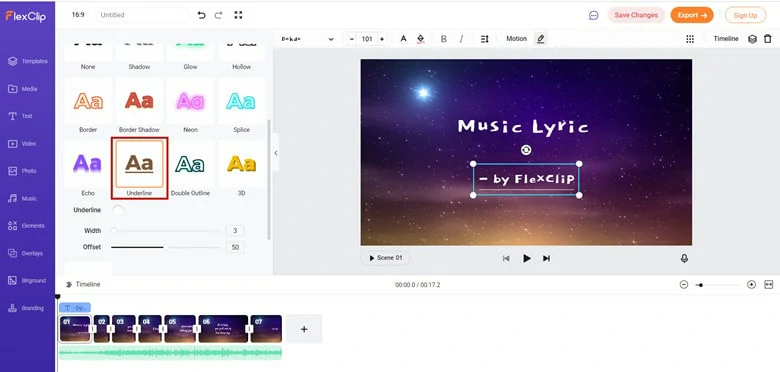
2. Choose the Effect: In your video editing software or platform, select the Underline Grow effect from the available text animation options.
3. Customize Settings: Adjust the color, speed, and other settings to match your video's style and theme.
4. Preview and Apply: Preview the effect to ensure it looks as desired, then apply it to your text.
5. Export Your Video: Once you are satisfied with the effect, export your video in the desired resolution and format.
Frequently Asked Questions
Ready to try AI video creation?
Start with 200 free credits. No credit card required.
Get Started Free200 credits included · Cancel anytime