Timer Video Effect: Enhance Your Videos with Precision Timing
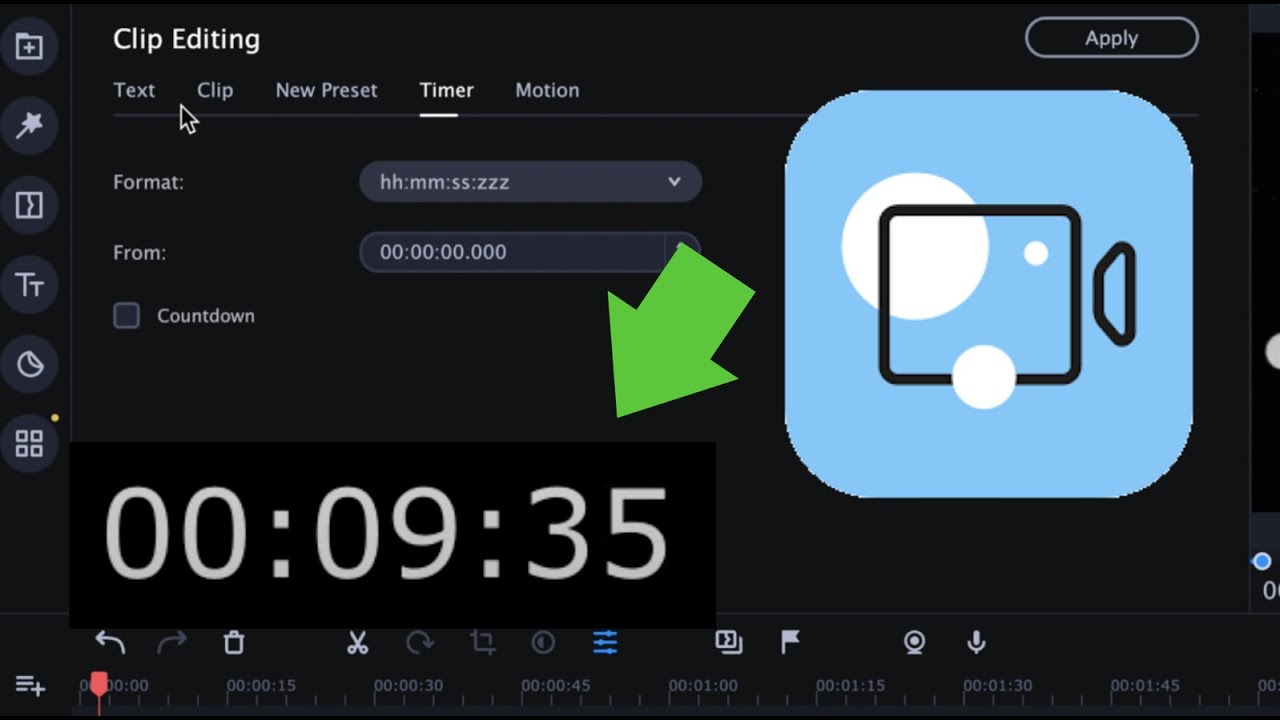
# Timer Video Effect: Elevate Your Content with Precision Timing
About Timer
The Timer video effect is a versatile tool designed to add a professional touch to your videos. This effect allows you to incorporate a visual countdown or timer directly into your video content, enhancing viewer engagement and providing a clear visual cue for timing. Whether you're creating tutorials, live streams, or fitness videos, the Timer effect ensures your audience stays informed and engaged.
Features
- Customizable Design: Tailor the timer to match your video's aesthetic, ensuring a seamless integration that enhances your content's visual appeal.
- Multiple Timer Styles: Choose from a variety of timer styles, including countdowns and stopwatches, to suit different types of video content.
- Easy Integration: Simply add the Timer effect to your video project with minimal effort, allowing you to focus on creating high-quality content.
- High Resolution: Enjoy crisp and clear timer visuals that maintain their quality even in high-definition videos.
- Animated and Static Options: Select between animated timers for dynamic content or static timers for a more subtle approach.
When to Use Timer
- Tutorials: Guide your viewers through step-by-step processes with clear timing cues, making it easier for them to follow along.
- Live Streams: Keep your audience informed about upcoming segments or breaks, enhancing the overall viewing experience.
- Webinars: Use timers to manage Q&A sessions or breaks, ensuring a smooth and professional presentation.
- Fitness Videos: Help viewers keep track of workout intervals, making your fitness content more effective and engaging.
How to Apply
1. Select the Timer Effect: Choose the Timer effect from the platform's library of video effects.
2. Customize the Timer: Adjust the design, style, and duration of the timer to fit your video's needs.
3. Integrate the Timer: Add the timer to your video project at the desired location.
4. Preview and Adjust: Review the timer's appearance and timing, making any necessary adjustments.
5. Export Your Video: Once satisfied, export your video with the Timer effect included.
For additional effects, consider exploring options like the Like Button or Follow Me to further enhance your video content.
Frequently Asked Questions
Ready to try AI video creation?
Start with 200 free credits. No credit card required.
Get Started Free200 credits included · Cancel anytime