Tech Terminal Style Video Effect: A Comprehensive Guide
# Tech Terminal Style Video Effect: A Comprehensive Guide
About Tech Terminal
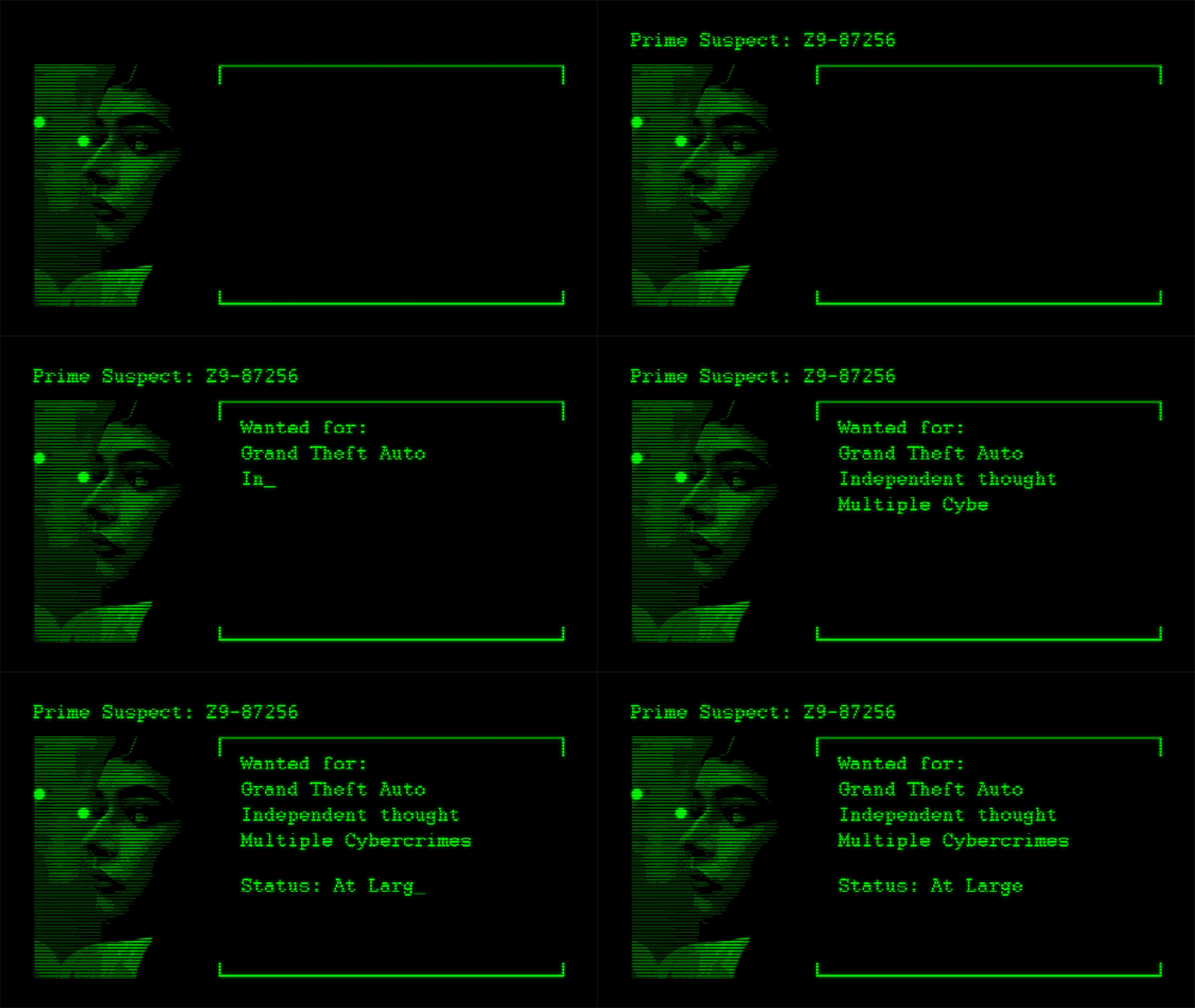
The Tech Terminal style video effect brings a classic terminal look to your videos, reminiscent of early computer interfaces. This effect features a monospace font, a blinking cursor, and a green-on-black color scheme, creating a visually striking and nostalgic aesthetic. It's perfect for content creators looking to add a retro tech vibe to their videos, making it ideal for tutorials, tech reviews, and educational content.
Features
- Classic Terminal Look: Achieve a retro computer terminal aesthetic with a green-on-black color scheme.
- Monospace Font: Use a monospace font to enhance the authentic terminal feel.
- Blinking Cursor: Add a blinking cursor to simulate a live terminal session.
- Customizable Text: Easily customize the text to display commands, code, or any other relevant information.
- Versatile Application: Apply the effect to various video styles, including tutorials, tech reviews, and educational content.
When to Use Tech Terminal
The Tech Terminal style video effect is ideal for several scenarios:
- Tech Tutorials: Enhance your tech tutorials with a terminal-like interface to make them more engaging and visually appealing.
- Educational Content: Use the effect to create educational videos that require a retro tech aesthetic.
- Tech Reviews: Add a nostalgic touch to your tech review videos, making them stand out from the competition.
How to Apply
Applying the Tech Terminal style video effect is straightforward:
1. Choose Your Video: Select the video you want to apply the effect to.
2. Select the Tech Terminal Effect: In your video editing software, navigate to the effects library and choose the Tech Terminal style.
3. Customize the Text: Enter the text you want to display in the terminal. This could be commands, code, or any other relevant information.
4. Adjust the Settings: Fine-tune the effect settings to achieve the desired look. You can adjust the font size, cursor speed, and color scheme.
5. Apply and Preview: Apply the effect to your video and preview it to ensure it meets your expectations.
For more video styles, explore the Documentary and Podcast Visual options available on the platform.
Frequently Asked Questions
Ready to try AI video creation?
Start with 200 free credits. No credit card required.
Get Started Free200 credits included · Cancel anytime