Chart Up Video Effect: Enhance Your Videos with Dynamic Data Visualization
# Chart Up Video Effect: Enhance Your Videos with Dynamic Data Visualization
About Chart Up
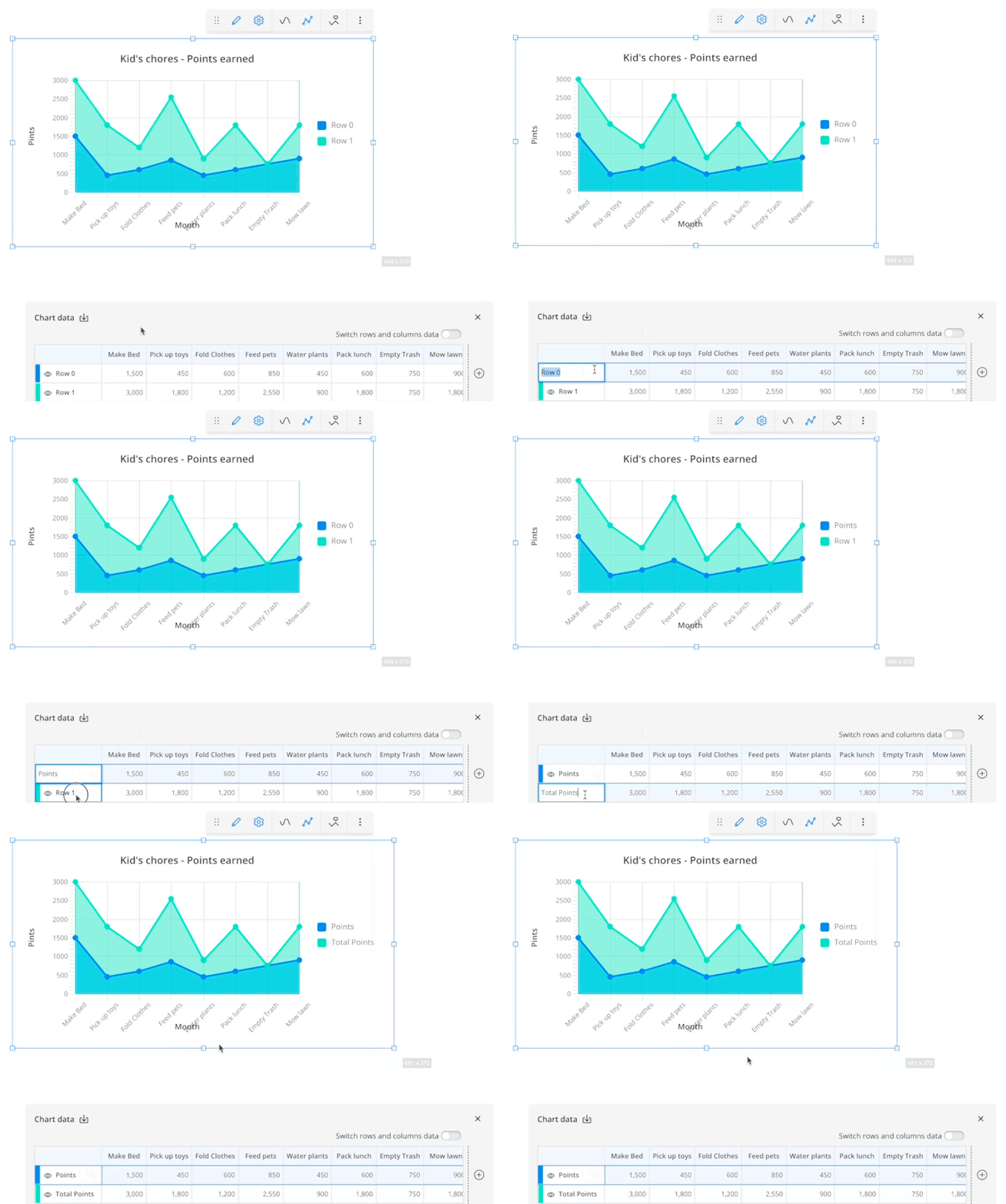
The Chart Up video effect is a powerful tool designed to bring dynamic data visualization to your videos. This effect allows you to create visually appealing charts that move upwards, illustrating growth, progress, or positive trends. Whether you're a content creator, marketer, or educator, Chart Up can help you present data in an engaging and easy-to-understand format.
Features
- Dynamic Visualization: Create charts that animate upwards, making your data presentations more engaging and visually appealing.
- Easy Integration: Simply upload your data and apply the Chart Up effect to see your information come to life.
- Customizable Designs: Choose from various chart styles and colors to match your video's theme and branding.
- High-Quality Output: Ensure your charts look professional with high-resolution rendering.
- User-Friendly Interface: Easily apply and customize the Chart Up effect without needing advanced technical skills.
When to Use Chart Up
- Educational Videos: Enhance learning materials by visually representing data trends and growth.
- Marketing Presentations: Make your marketing data more compelling with dynamic charts that show progress and success.
- Social Media Content: Create eye-catching posts that highlight achievements and milestones with upward-trending charts.
How to Apply
1. Upload Your Data: Start by uploading the data you want to visualize. This can be in the form of a spreadsheet or a simple list of numbers.
2. Choose the Chart Up Effect: Select the Chart Up effect from the available options in your video editing tool.
3. Customize Your Chart: Adjust the design, colors, and animation speed to fit your video's style.
4. Preview and Apply: Preview the effect to ensure it meets your expectations, then apply it to your video.
5. Export Your Video: Once you're satisfied with the result, export your video in the desired resolution.
For additional effects, consider exploring options like the Like Button or Follow Me to further enhance your videos.
Frequently Asked Questions
Ready to try AI video creation?
Start with 200 free credits. No credit card required.
Get Started Free200 credits included · Cancel anytime